How to connect WordPress to Claude via MCP with full content permissions
 Marko Fedorenko
 In one session Claude Desktop got access to my WordPress site. Within a few minutes it exported all 443 posts, found duplicates and moved off-topic posts to the trash. Below I describe how we set it up.
This guide is for anyone who runs a site on WordPress and wants to manage content through Claude. Claude will be able to read, edit, create and delete posts, pages, media, categories and menus. The command examples are for Windows (PowerShell), and the differences for macOS are covered in step 3.
Before you start, check that you have:
- access to the admin panel of WordPress 6.9 or newer;
- FTP or your host’s file manager;
- Claude Desktop and Node.js on your computer.
The setup was tested on WordPress 7.1.2, MCP Adapter 0.7.0, PHP 8.3 and mcp-remote 0.14.x in October 2026. On other versions, menu and field names may differ.
How it works
Claude doesn’t work with the site directly. Its requests pass through five links: Claude Desktop → mcp-remote → MCP Adapter → the mysite/rest-request ability → WordPress REST API. Access to content is opened by the fourth link, our mini-plugin with the mysite/rest-request ability.
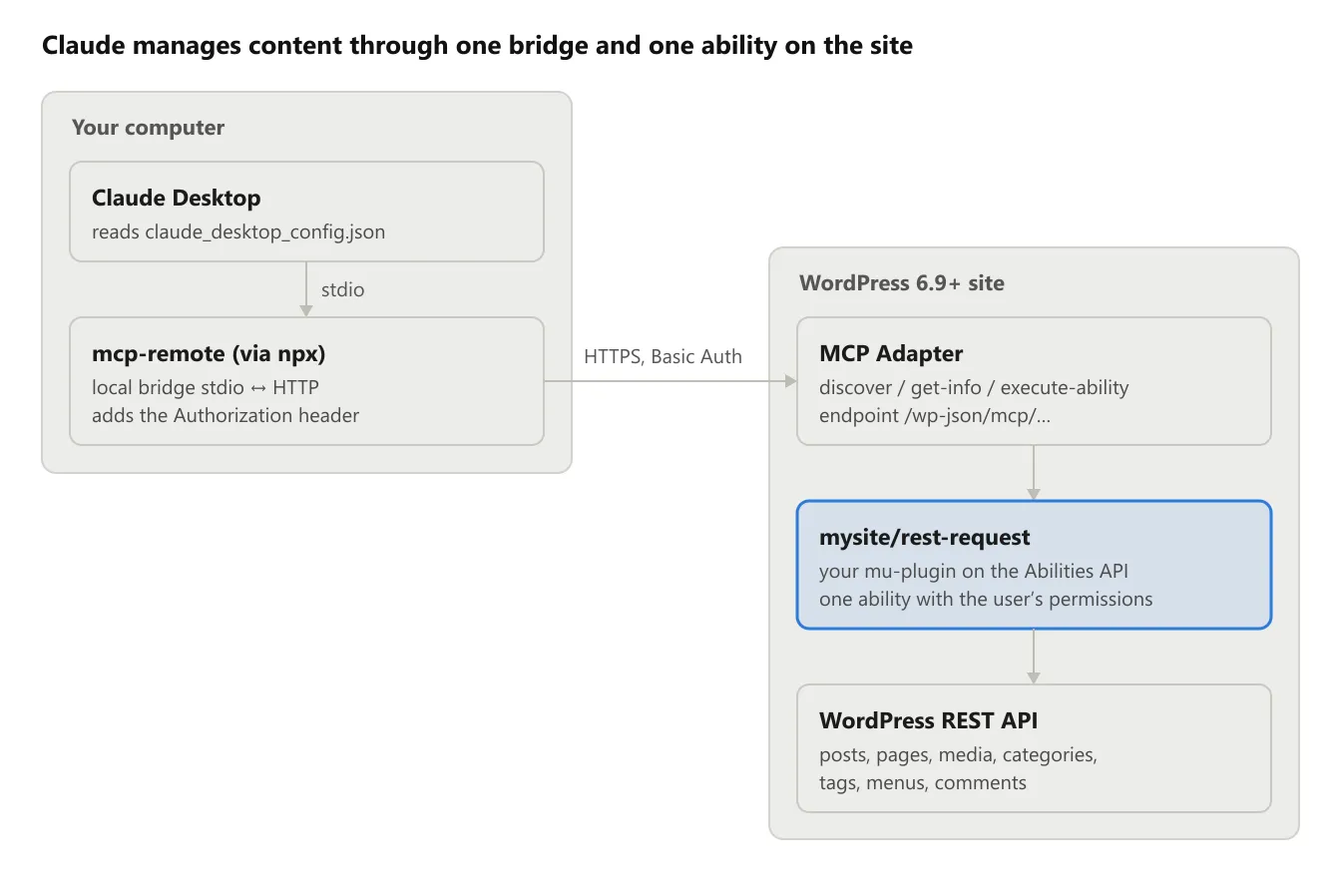
Connection architecture · 5 links
MCP Adapter accepts requests from Claude but does nothing on its own. It only runs the abilities registered on the site. Our mysite/rest-request ability passes the request to the REST API with your user’s permissions, so Claude gets the same access to content as that user.
Setup in four steps
First we prepare the site and check the connection without Claude. Then we connect Claude Desktop through the mcp-remote bridge. The last step adds the mini-plugin that opens access to posts.
Step 1. MCP Adapter and an application password
The site needs two things. The first is the official MCP Adapter plugin. The second is an application password (Application Password) for the user Claude will act as.
In the admin panel, do the following:
- Install and activate MCP Adapter. It creates the endpoint
https://your-site/wp-json/mcp/mcp-adapter-default-server. The plugin needs the Abilities API, which WordPress has included since version 6.9. - Open “Users → Profile” for the user you need. In the Application Passwords block, create a new password with any name.
- Save the password and write down the user’s login. You won’t need the password’s name to sign in.
Claude will get the same permissions as this user. The Editor role is enough for full content management. The Administrator role adds access to plugins, settings and users.
Step 2. Checking the connection with curl
Before connecting Claude, make sure the server responds and the login and password work. The request below does the same thing an MCP client does when it first connects. In PowerShell it’s better to put the JSON in a separate file, because PowerShell strips the quotes inside the string.
'{"jsonrpc":"2.0","id":1,"method":"initialize","params":{"protocolVersion":"2025-06-18","capabilities":{},"clientInfo":{"name":"test","version":"1.0"}}}' | Out-File -Encoding ascii init.json

curl.exe -X POST "https://your-site/wp-json/mcp/mcp-adapter-default-server" `
  --user "LOGIN:xxxx xxxx xxxx xxxx xxxx xxxx" `
  -H "Content-Type: application/json" `
  -H "Accept: application/json, text/event-stream" `
  -d "@init.json" -i
A successful response has the code HTTP/1.1 200 OK, an Mcp-Session-Id header and JSON with "serverInfo":{"name":"MCP Adapter Default Server"}. A 401 code means the login or password is wrong. Don’t move on to the next step until you get 200.
Step 3. Connecting Claude Desktop via mcp-remote
Claude Desktop runs MCP servers locally, so it needs a bridge to the site. We used mcp-remote. It accepts requests from Claude and forwards them to the site with an Authorization header.
First, encode the login and password in Base64:
[Convert]::ToBase64String([Text.Encoding]::UTF8.GetBytes("LOGIN:xxxx xxxx xxxx xxxx xxxx xxxx"))On macOS the command printf 'LOGIN:password' | base64 does the same.
Next, add the server to the Claude Desktop config. On Windows the file is at %APPDATA%\Claude\claude_desktop_config.json, on macOS at ~/Library/Application Support/Claude/claude_desktop_config.json. You can also open it via Settings → Developer → Edit Config. The script below makes a backup, adds the my-wp server and leaves the other servers untouched.
$path = "$env:APPDATA\Claude\claude_desktop_config.json"
Copy-Item $path "$path.bak" -Force
$cfg = Get-Content $path -Raw | ConvertFrom-Json
if (-not $cfg.mcpServers) { $cfg | Add-Member mcpServers ([pscustomobject]@{}) }
$cfg.mcpServers | Add-Member -NotePropertyName "my-wp" -Force -NotePropertyValue ([pscustomobject]@{
  command = "npx"
  args    = @("mcp-remote", "https://your-site/wp-json/mcp/mcp-adapter-default-server", "--header", "Authorization:`${WP_AUTH}")
  env     = [pscustomobject]@{ WP_AUTH = "Basic YOUR_BASE64" }
})
[IO.File]::WriteAllText($path, ($cfg | ConvertTo-Json -Depth 20), (New-Object Text.UTF8Encoding $false))
The script has two details that are easy to miss. The header is passed through the ${WP_AUTH} variable with no space after the colon, because on Windows a space in the arguments breaks mcp-remote. The file is saved without a BOM, otherwise Claude can’t read the JSON.
After that, fully close Claude Desktop via the tray → Quit and open it again. The tools only appear in a new chat, because the tool list doesn’t refresh in chats that are already open. The server status is shown in Settings → Developer.
Claude now sees three tools: discover-abilities, get-ability-info and execute-ability. They only expose three service abilities with information about the site, the user and the environment. For Claude to read and change posts, you need step 4.
Step 4. A mini-plugin for content access
MCP Adapter only shows Claude the abilities registered on the site. WordPress itself doesn’t register any abilities for posts or pages. There are third-party plugins with hundreds of abilities, but we wrote our own mini-plugin on the official Abilities API. It adds one ability through which Claude can run any request to the site’s built-in REST API.
Save the code as mcp-abilities.php and upload it to the wp-content/mu-plugins/ folder. If the folder doesn’t exist, create it. Plugins in mu-plugins work without activation and can’t be switched off by accident in the admin panel.
<?php
/**
 * Plugin Name: MCP REST Ability
 * Description: Gives MCP Adapter access to the REST API with the current user's permissions.
 */
if ( ! defined( 'ABSPATH' ) ) exit;

add_action( 'wp_abilities_api_init', function () {
	if ( ! function_exists( 'wp_register_ability' ) ) return;

	wp_register_ability( 'mysite/rest-request', array(
		'label'       => 'WordPress REST request',
		'description' => 'Runs any WordPress REST API request as the current user. '
			. 'GET /wp/v2/posts lists posts; POST /wp/v2/posts creates; POST /wp/v2/posts/123 updates; '
			. 'DELETE /wp/v2/posts/123 trashes. Same for pages, media, categories, tags, comments, menus. '
			. 'GET / lists all routes.',
		'category'    => 'site',
		'input_schema' => array(
			'type' => 'object',
			'properties' => array(
				'method' => array( 'type' => 'string', 'enum' => array( 'GET', 'POST', 'PUT', 'PATCH', 'DELETE' ), 'default' => 'GET' ),
				'path'   => array( 'type' => 'string', 'description' => 'REST route, e.g. /wp/v2/posts' ),
				'params' => array( 'type' => 'object', 'additionalProperties' => true ),
			),
			'required' => array( 'path' ),
			'additionalProperties' => false,
		),
		'execute_callback' => function ( $input ) {
			$method  = strtoupper( $input['method'] ?? 'GET' );
			$params  = is_array( $input['params'] ?? null ) ? $input['params'] : array();
			$request = new WP_REST_Request( $method, '/' . ltrim( $input['path'], '/' ) );
			in_array( $method, array( 'GET', 'DELETE' ), true )
				? $request->set_query_params( $params )
				: $request->set_body_params( $params );
			$response = rest_do_request( $request );
			$headers  = $response->get_headers();
			return array(
				'status'      => $response->get_status(),
				'total'       => isset( $headers['X-WP-Total'] ) ? (int) $headers['X-WP-Total'] : null,
				'total_pages' => isset( $headers['X-WP-TotalPages'] ) ? (int) $headers['X-WP-TotalPages'] : null,
				'data'        => rest_get_server()->response_to_data( $response, false ),
			);
		},
		'permission_callback' => function () { return is_user_logged_in(); },
		'meta' => array(
			'mcp'         => array( 'public' => true ),
			'annotations' => array( 'readonly' => false, 'destructive' => true, 'idempotent' => false ),
		),
	) );
} );
Three places in the code are worth a closer look:
meta.mcp.public = truemakes the ability visible to MCP Adapter. Without this flag Claude won’t see it.rest_do_request()runs the request inside WordPress, so permissions are checked by the REST API itself. Claude can’t do more than the user can in the admin panel.totalandtotal_pagesare needed for pagination, because REST returns no more than 100 items at a time.
To test the plugin, open a new chat and ask Claude to list the posts. This time you don’t need to restart Claude Desktop. The ability appears in discover-abilities as soon as the file is on the server.
Security
Full access means Claude can delete anything its user can delete. So it’s worth limiting permissions before the first bulk operation. Here’s what to do:
- A separate user for Claude. The logs will show exactly what Claude did. You can revoke access without changing your own password.
- Editor instead of Administrator. Editor has enough permissions for working with content, and no access to plugins or settings.
- Read-only to start with. Leave only
GETin theenumof themethodparameter, and MCP Adapter will reject other methods before anything runs. It’s also worth setting thereadonly => trueannotation. It only tells the client that the ability reads data, and on its own it doesn’t block anything. - Delete to trash only. Only posts, pages and comments have a trash. A
DELETErequest withoutforce=truemoves them there for 30 days. Categories, tags and media (unlessMEDIA_TRASHis enabled) have no trash: withoutforce=trueREST returns an error, and with it deletes them permanently. - A backup before bulk changes. Especially if the changes affect dozens of posts at once.
- The password in the config isn’t encrypted. Base64 is easy to decode, so
claude_desktop_config.jsoneffectively stores the password in plain text. Don’t publish this file or sync it through cloud services.
To replace the password, create a new application password, revoke the old one and update WP_AUTH in the config as described in step 3.
What you can do next
I gave the first tasks on my site in plain words, without any code. Here’s what came out of it:
- “List all posts”. Claude went through 5 pages of results and built an Excel file with the IDs, dates, statuses and titles of 443 posts.
- “Delete the off-topic posts”. Five posts went to the trash.
- “Which posts are outdated?” Claude found cannibalisation between series of posts from different years and old titles with the blog name at the end.
The same access is handy for other routine content work:
- running a content audit: looking for outdated facts, duplicates and posts without categories;
- finding places for internal links and inserting them into the text;
- writing drafts with the
draftstatus, which you then proofread and publish yourself; - bulk-editing titles and meta descriptions.
Titles and meta descriptions from Yoast SEO need one addition. The yoast_head_json field exposes them read-only. For Claude to change them, the _yoast_wpseo_title and _yoast_wpseo_metadesc meta fields must be registered with show_in_rest. Add the code below to the end of the wp-content/mu-plugins/mcp-abilities.php file from step 4, after the last } ); line:
add_action( 'init', function () {
	foreach ( array( '_yoast_wpseo_title', '_yoast_wpseo_metadesc' ) as $key ) {
		register_post_meta( 'post', $key, array(
			'show_in_rest'  => true,
			'single'        => true,
			'type'          => 'string',
			'auth_callback' => function () { return current_user_can( 'edit_posts' ); },
		) );
	}
} );
After that, Claude changes the title and description with the same request it uses for the post text: POST /wp/v2/posts/123 with the meta parameter. The code opens these fields for posts only. For pages, add the same call with 'page' instead of 'post'.
The universal ability from step 4 opens everything the user’s role allows. If you need narrower permissions, replace it with several separate abilities. For example, “list posts”, “read a post” and “update a draft”, without the right to publish or delete. That’s the advantage of MCP over the plain REST API. An application password always grants all of the role’s permissions, while MCP abilities can be narrower: say, an Editor who can’t delete anything through Claude.
Documentation
If something works differently on your version, check the official documentation. Below are links to all the components used in this guide. The versions I tested the setup on are listed at the start of the article.
- MCP Adapter: the plugin that connects WordPress to MCP.
- Abilities API: registering abilities in WordPress.
- Application Passwords: application passwords.
- REST API Handbook: REST API routes and parameters.
- mcp-remote: the bridge between Claude Desktop and a remote MCP server.
- Model Context Protocol: the MCP specification.
See more from marko-f.com in your Google Search results.